Accounts
Accounts
Add a broker login, then finish verification with Manual login.
An account is one broker login. Each login keeps its own browser profile on this computer.
Open a group#
Choose Accounts in the sidebar. The pane stays empty until a group on the left is selected. Choose New, name the group, and select it. Add account belongs to that group.
Add the login#
Choose Add account. Pick the broker, then give the login a name you will recognize. Type the username and password you already use at the broker.
SlugSplit stores those on this computer, encrypted. A blank optional field, such as a TOTP secret, is fine. The broker will ask you to finish that step in the browser.
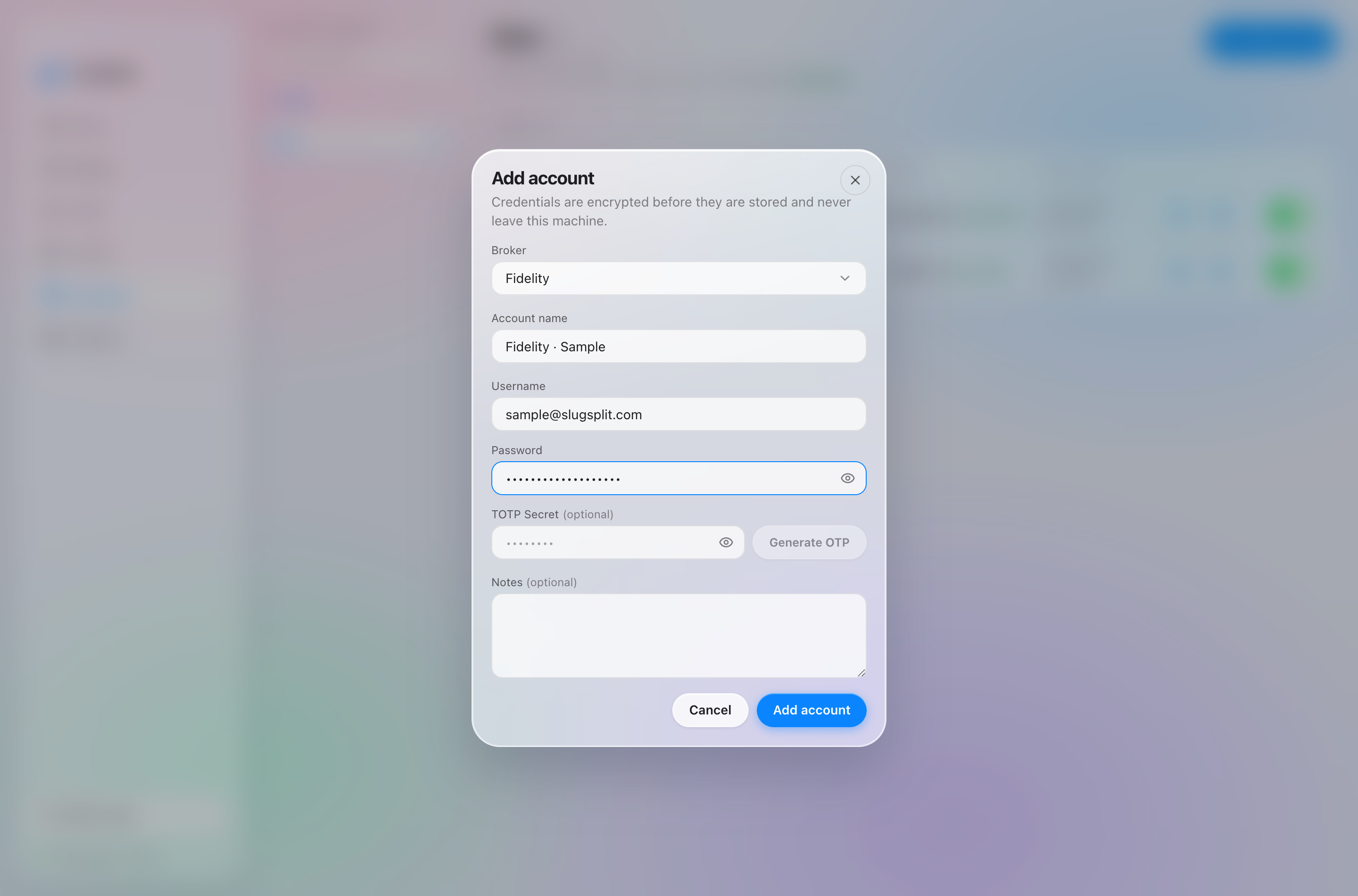
Adding a sample Fidelity login. The password is not a real one.
Choose Add account at the bottom to save the row.
Manual login#
Right-click the account.
Manual login opens that account's browser profile and stops there. It does not type the password for you. Finish whatever the broker asks for, then close the window. The profile stays on this computer. Open in browser is different: SlugSplit signs in so you can look around, and closing that window ends the visit.
Test login checks that the sign-in works.
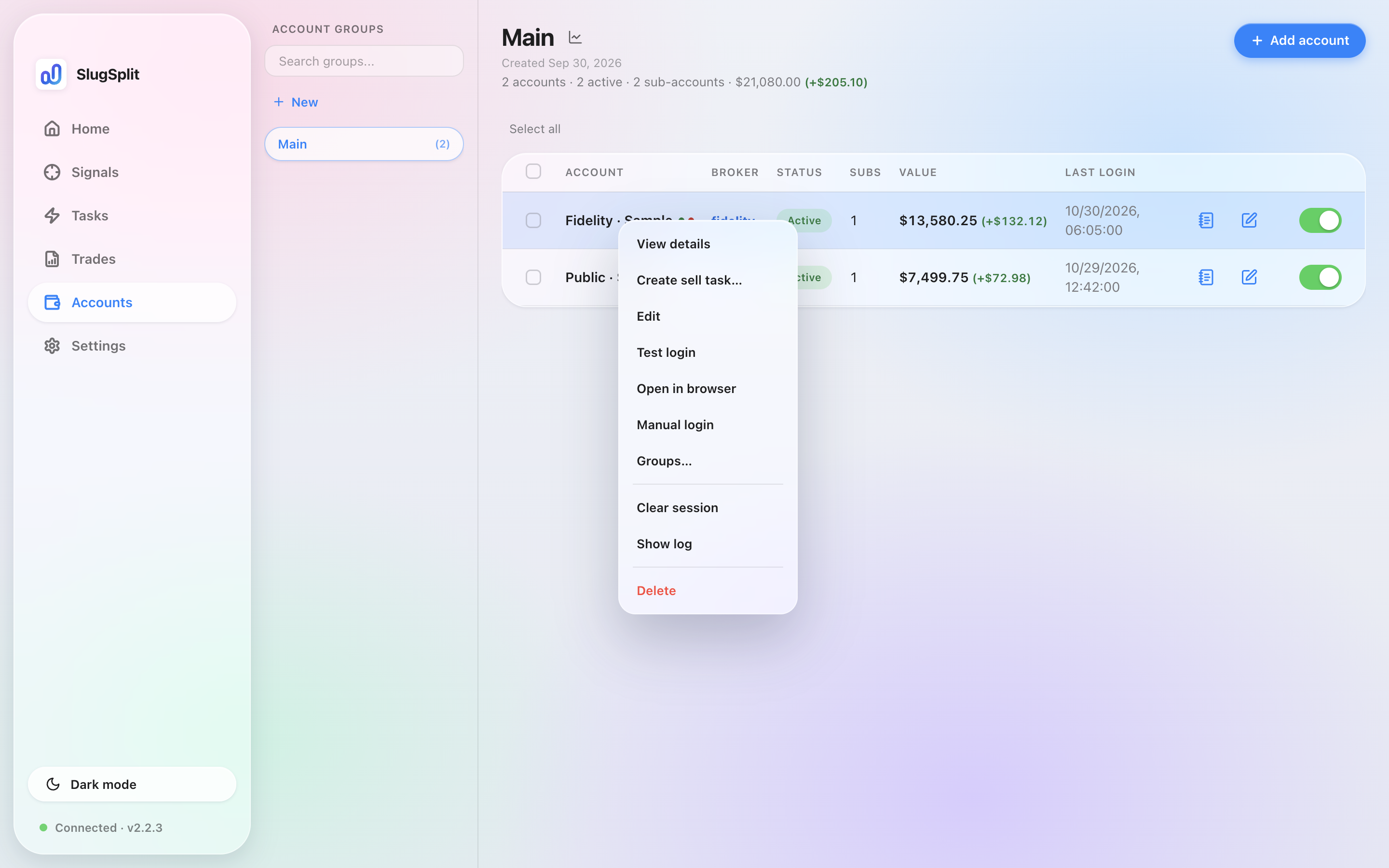
Right-click an account for Manual login and Open in browser.
The account names in the picture are samples.
The rest of the row is in Details: the notebook opens the account, the pencil edits it, and the switch turns it on or off. Right-click also has Create sell task… (Sell plays), Test login, Groups…, Clear session, Show log, and Delete. Groups are in Groups. A code or an app approval opens Verify.
Clear session drops the saved broker sign-in for that account. It does nothing while a task, a login, or a browser window is already using the account. Delete removes the account from SlugSplit. It does not close the account at the broker.