Signals
Upcoming
High quality plays with a confirmed reverse split date that hasn't happened yet. This is the first tab you see when you open Signals.
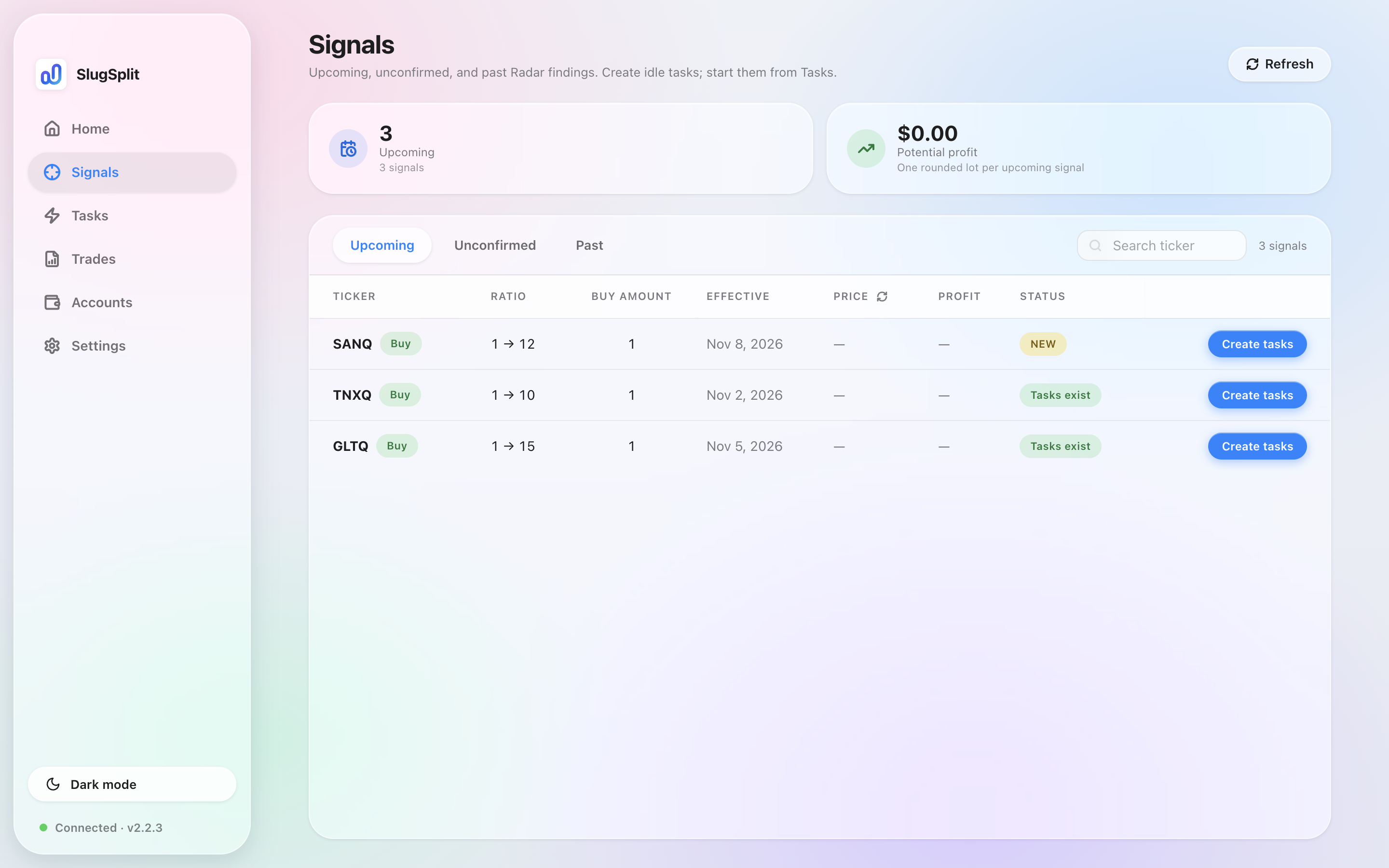
What each column means#
| Column | What it shows |
|---|---|
| Ticker | The abbreviation of the stock, with a Buy or Sell badge. |
| Ratio | The split ratio, e.g. 8 → 1 means every 8 shares become 1. |
| Buy amount | How many shares to hold so the split rounds in your favor. See how buy amount is calculated. |
| Effective | The date the split takes effect. You aim to buy before this date. |
| Price | The latest quote. You can refresh by clicking the refresh icon. |
| Profit | Estimated profit per account at the current price. |
| Status | Displays NEW until you create a task for this play, then Tasks exist. |
To participate/buy in on a play, click Create tasks on its row. See Create tasks.
Tab is empty? Click Refresh to pull the latest signals. New plays may be in Unconfirmed if their date isn't announced yet.
Create tasks#
Choose Create tasks on the row. The form title is Create task.
Task group starts as New task group. Task group name is filled from the ticker and the effective date. You can type a different name, or pick a group you already have.
Buy is locked to that ticker when the signal is a buy. Amount is the Buy amount from the row, in shares. Dry run follows Default dry run. On a new install it is on, and the label reads Dry run (simulation only, no real transactions).
Create task writes idle tasks. It does not start them. Leave Dry run on until you mean to spend real money. Turn it off, then start the task from Tasks, only when that task should place the order.
Create tasks stays disabled while the feed is halted. The tooltip is Signal feed is halted. It is also disabled when the signal cannot be used. That tooltip is This signal is not executable.
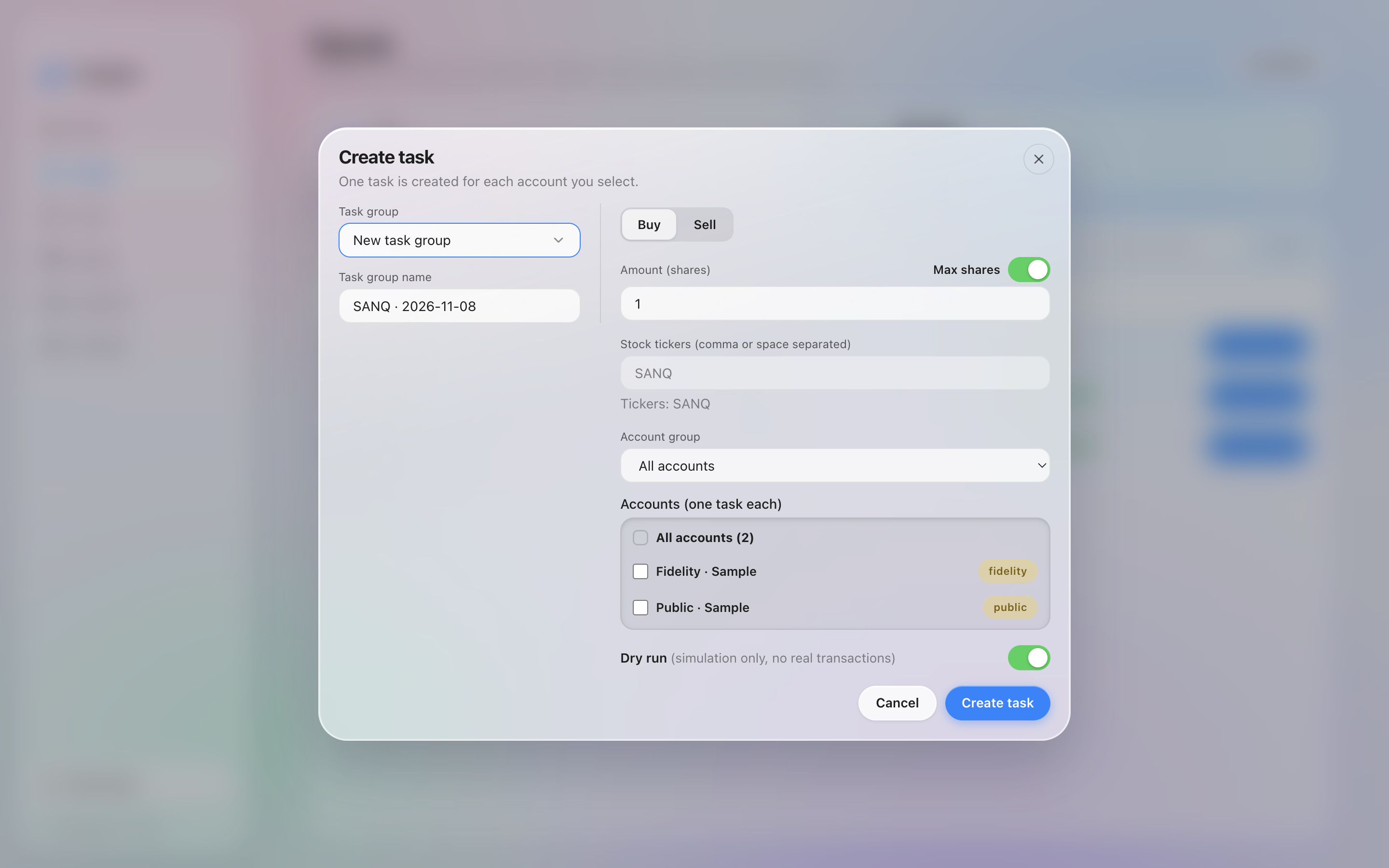
Create task from a signal. Dry run is on, and the buy is 1 share of the sample ticker.