Settings
About
The app version, check for updates, and where settings are stored.
Choose Settings, then About.
The card shows the SlugSplit mark and Version, then Check for updates.
- Download update when a newer version can install from inside the app.
- A progress bar while it downloads.
- Restart to finish updating when the download is ready. The app restarts into the new version.
- Open download in browser only when the app cannot install the update itself.
A failed check says so on the card. A running task keeps the restart from happening on its own from the status strip. Restart to finish updating on this tab is a click, and it does not wait.
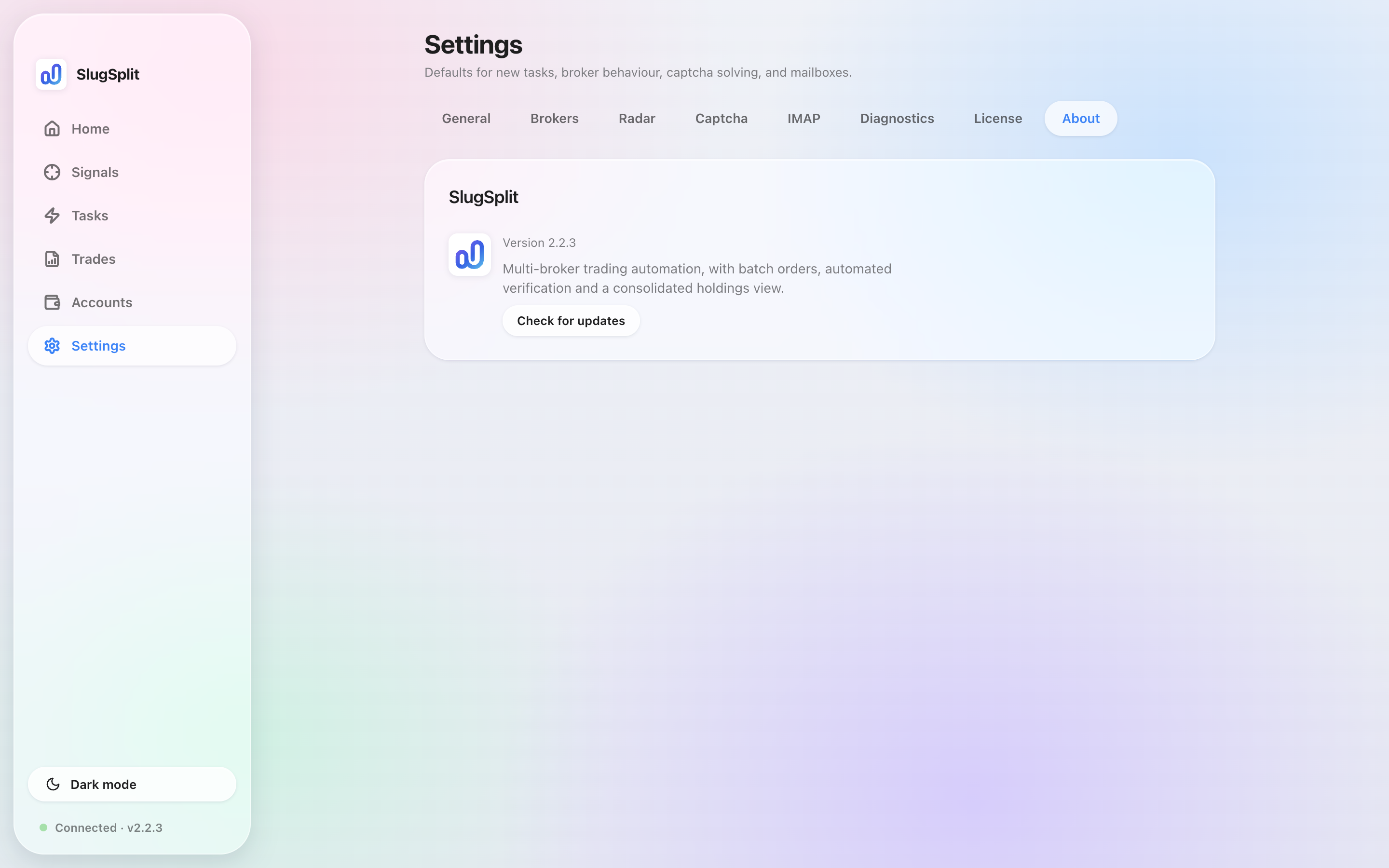
About, with Check for updates.
Legal#
The Legal list on this tab names the current legal documents — the Terms of Service with its version — each with a Read button that opens the full text in a reader dialog. The terms are asked for once, at launch; an in-app popup appears again only when the terms are updated.
Light and dark#
The sun or moon button at the bottom of the sidebar switches the theme. It is not a setting on this tab. The footer under it reads Connected when the background worker is ready, with the version beside it. Stopped means the worker could not be restarted. Quit SlugSplit and open it again.
About settings#
Settings live in this machine's application database and survive a restart. Nothing on the Settings page is sent anywhere by saving it. Send logs to support on Diagnostics is the upload, and it is a separate button.
A change applies to the next operation that reads it. A task already running keeps the values it started with.