Settings
License
The licence on this install, including check, activate, and log out.
Choose Settings, then License.
The badge is the status for this install.
- A valid licence shows the status name in green.
- Not activated means no key yet.
- Other failures show in red, with the server's own status, so an expired key and a device limit do not look the same.
- Plan and Expires show when the server sent them.
Check licence asks the server again.
Current key is the key stored on this machine. Show key reveals it. Hide key masks it again.
When the licence is not valid, paste a key into License key and choose Activate. The same form is the first screen of the app. See Sign in.
Log out removes the key from this device and returns you to the activation screen. You can activate again with the same key on this machine. Confirm Log out in the dialog. If the server could not be told, the page says so. The key is still gone from this device, and the seat may still be held until the server hears about it.
A demo window that is not a packaged install can show Not enforced. A packaged install asks for the key.
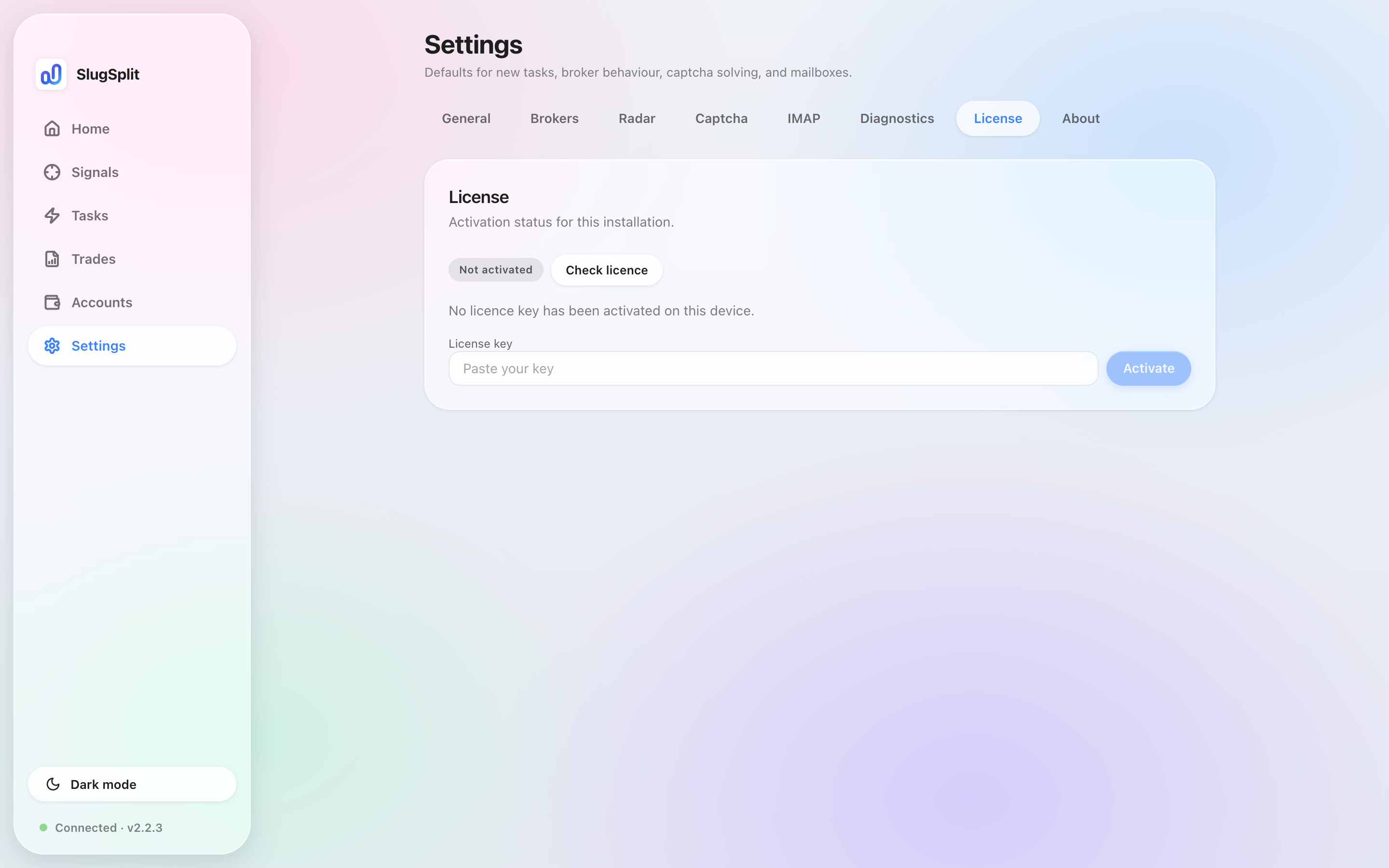
License in a demo window. The badge says Not enforced.
When this version is below the one the licence requires, the tab says to update. Use About, Check for updates.