Accounts
Holdings
Where to read a balance, today's move, and the positions behind them.
Choose Accounts and select a group. Each row is one broker login, with its balance and today's move.
Value is the balance SlugSplit last recorded for that login. Today's move sits in parentheses beside it. A plus is up since the start of today. A minus is down. (+$0.00) means the balance did not move. A dash means there is no balance on file yet.
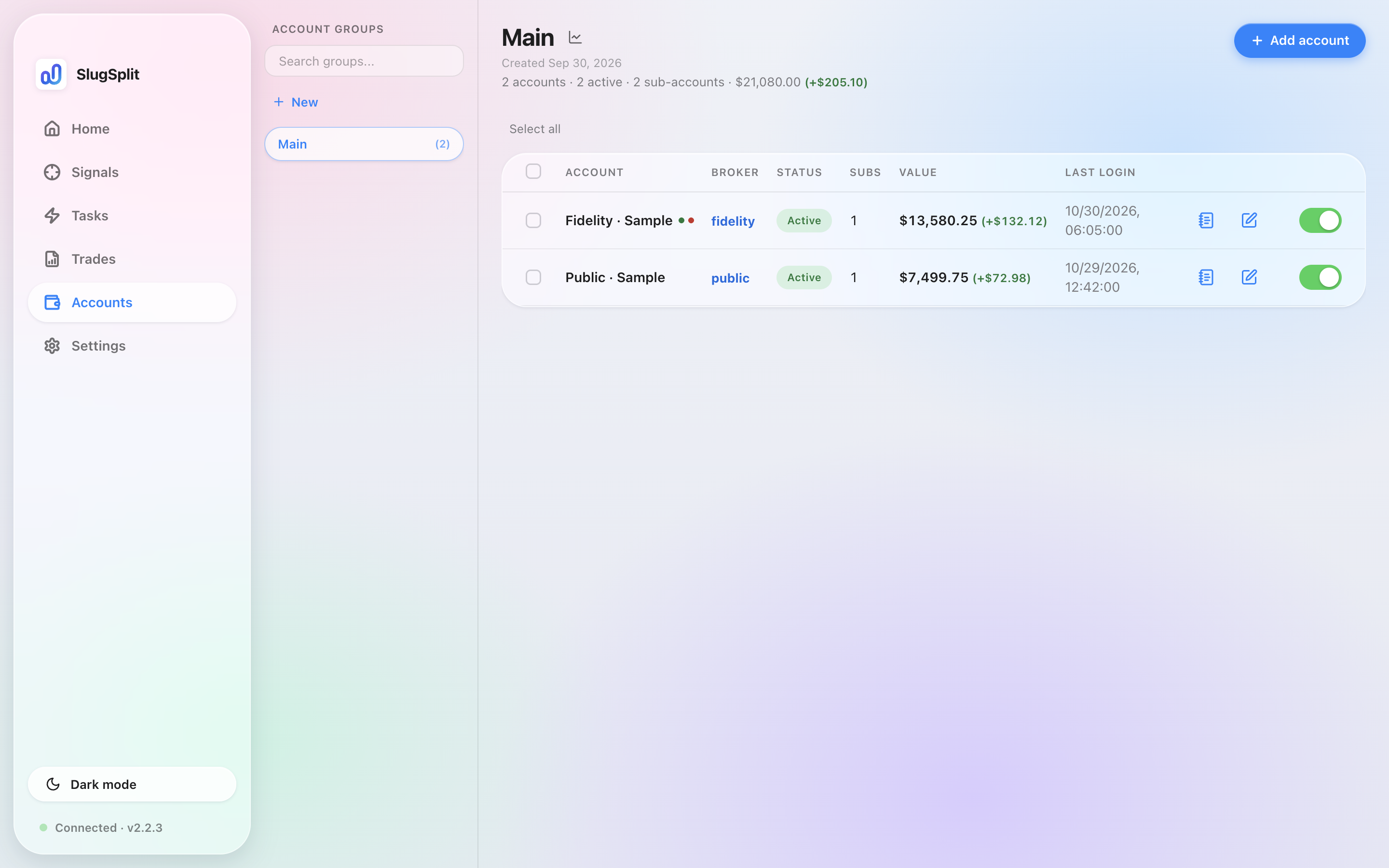
The accounts table. Balance, then today's move.
A green or red dot beside an account's name means the reverse-split classifier found positions to sell there — rounded-up shares (green) or fractional leftovers (red). Hover the dot for the counts, then right-click the account and choose Create sell task…. The whole flow is in Sell plays.
Those numbers update when holdings are fetched: Test login, Fetch holdings, or a task that signs in and reads the account. Last login is the last time a sign-in succeeded. Never means that has not happened yet.
Positions#
Choose the notebook icon on the row (Details). The dialog lists the investment accounts inside that login, with cash and value, then the positions: symbol, quantity, price, and value.
Fetch holdings signs in and replaces those figures with what the broker reports. Until a fetch has succeeded, the dialog says no positions are recorded.
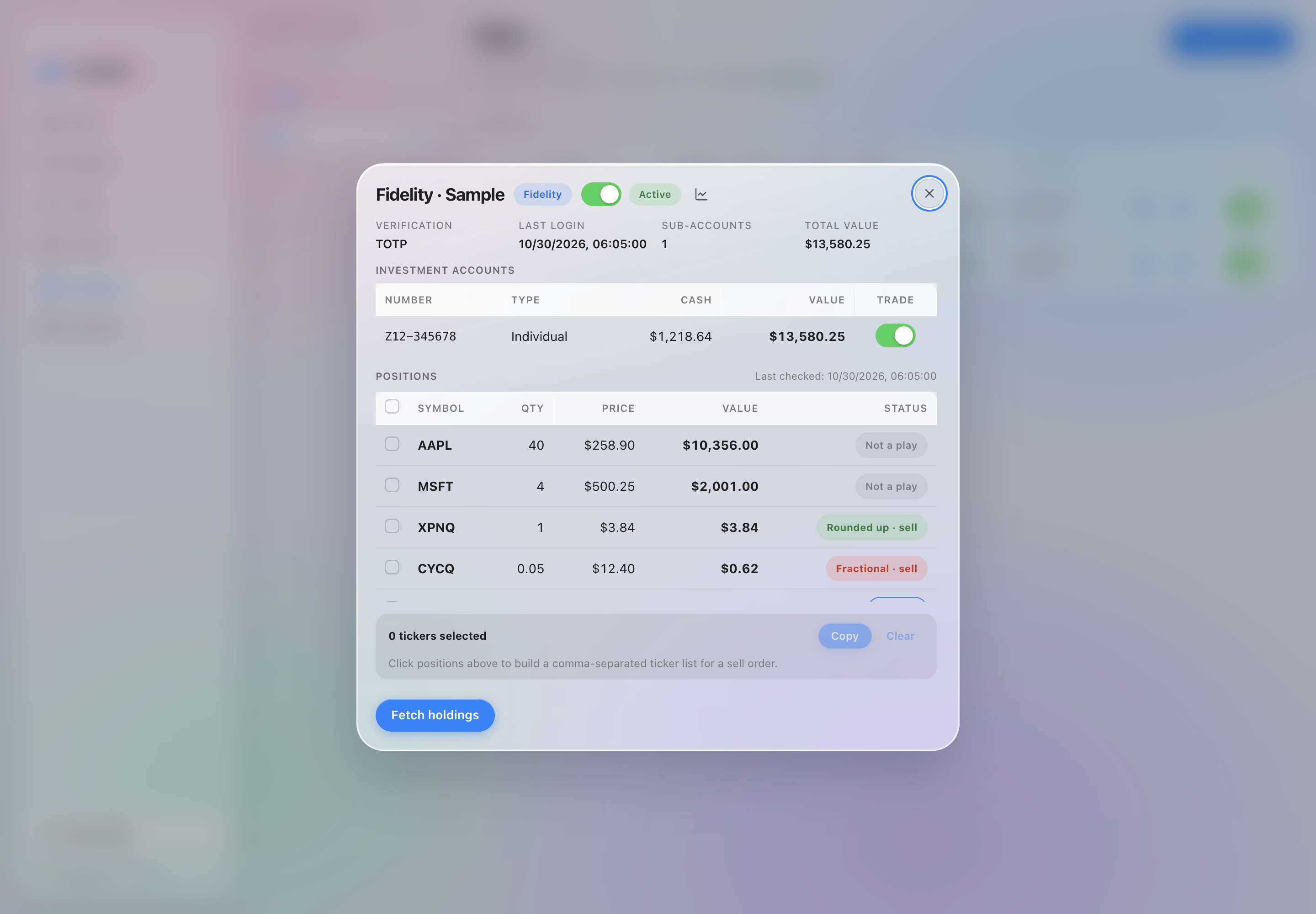
Positions on a sample login.
The balances in these pictures are sample data.
Overview, the home screen, adds the known balances into one net worth and charts the readings it has stored.