Accounts
Details
The account details window, including holdings, the active switch, and the balance chart.
Details is the window for one account.
Open an account with the notebook icon on its row, or right-click and choose View details. The window title is the account name.
The switch next to the name turns the account Active or Inactive. An inactive account stays in the list. The same switch sits on the row itself.
Verification, Last login, Sub-accounts, and Total value sit under the name. Last login stays Never until a sign-in succeeds. A Fennel login also shows PAT quota.
Investment accounts#
These are the books inside the login. Columns are Number, Type, Cash, Value, and Trade.
Trade is a switch for that book. Off means tasks skip it. Click a row to see its positions underneath.
None discovered yet means SlugSplit has not read the login. Test login is what finds the books.
Positions#
Symbol, Qty, Price, Value, and Status. Status is the position's reverse-split state — the pills are explained in Sell plays. Clicking positions builds a ticker list for a sell order; Copy puts it on the clipboard. Fetch holdings signs in and replaces those figures with what the broker reports.
Fetch holdings uses the real login. It does not place an order. It does spend a sign-in, and it can ask for a code.
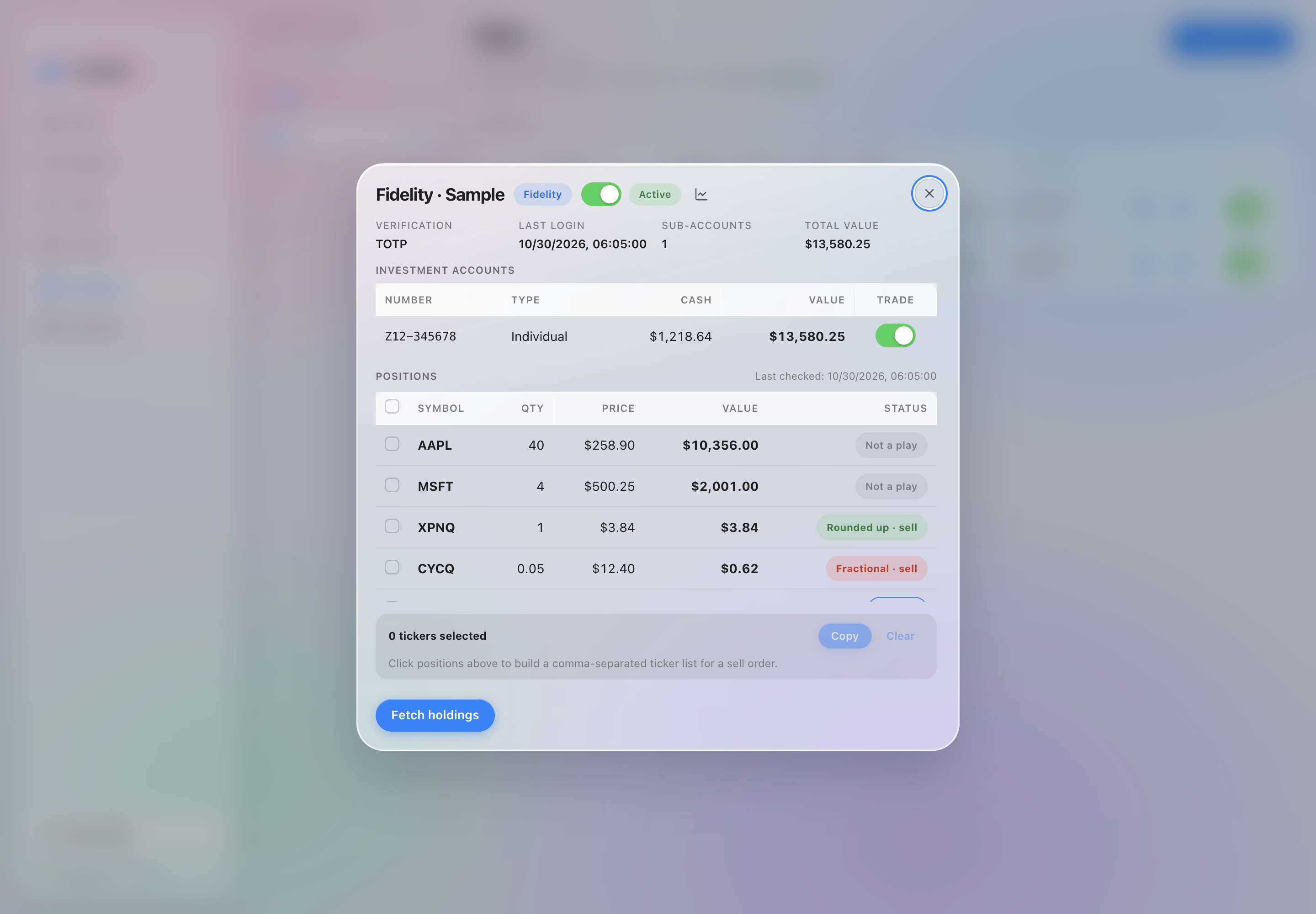
Positions on a sample login.
The balances in the picture are sample data.
Trend#
The chart icon in the details window is Trend. It graphs the balances already stored for this login. The chart stays empty until a fetch or a sign-in has recorded one.
Account log#
Right-click the account and choose Show log. The window title is Account log. Copy puts the text on the clipboard. The log is empty until this account has been used.